 GPT Image 2 is now available — try the latest OpenAI image model in your video projects.✨
 AIStory.Video
New: Choose the AI Image Model for Each Scene

You can now choose which AI image model to use when regenerating a scene image inside the aistory.video editor.
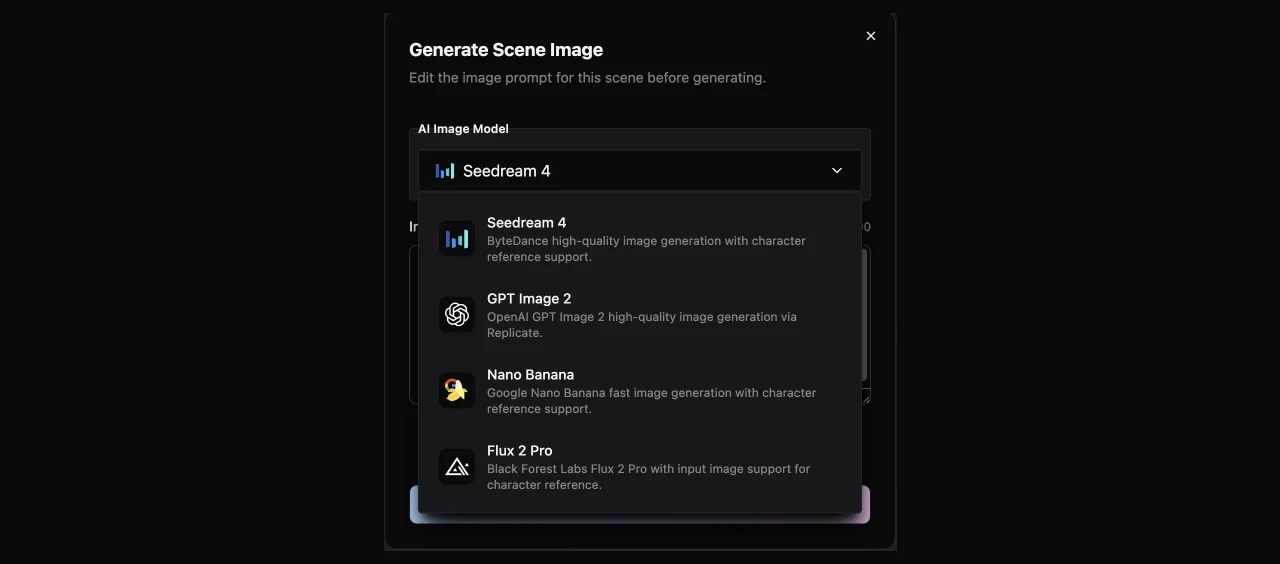
This is a small control with a big effect. You no longer have to accept the first set of images created when the project starts. If one scene needs cleaner text, a more cinematic look, a different character feel, or a more polished poster-like frame, you can edit the prompt and pick the model that fits that scene best.
What changed
When you open a project in the editor and choose to regenerate a scene image, the generation modal now includes an AI Image Model selector.
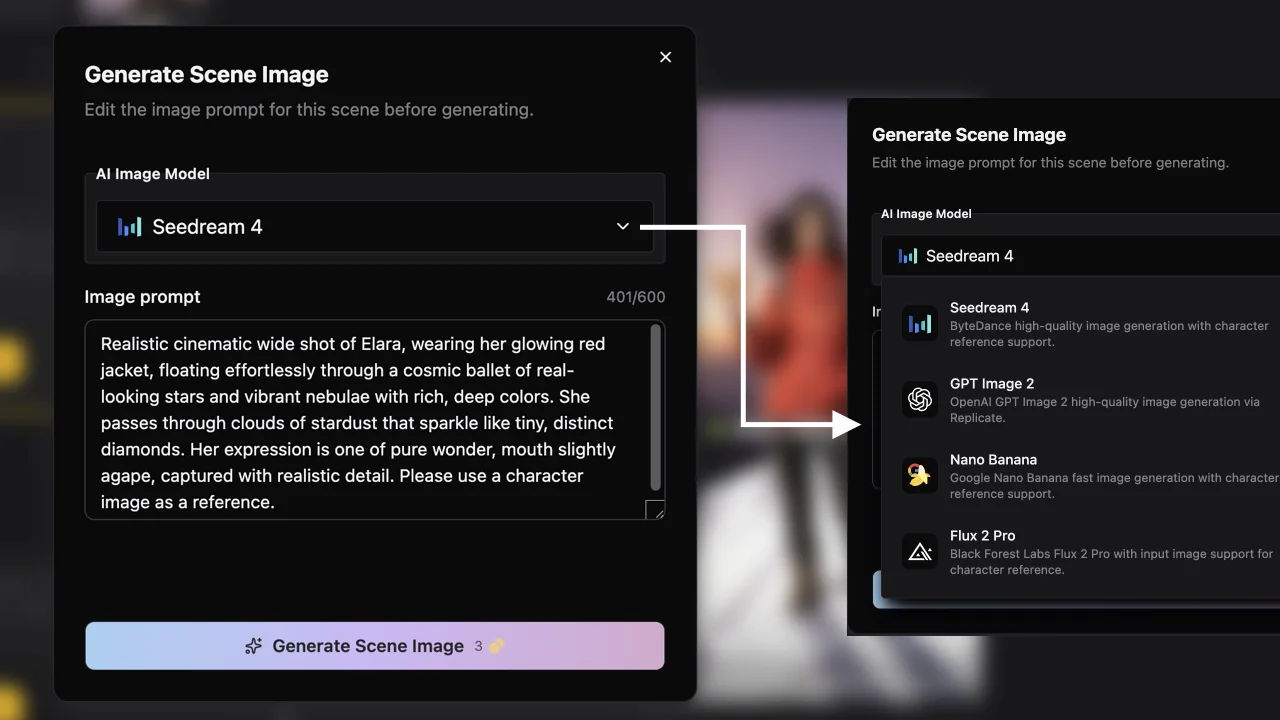
The current model options are:
Seedream-4GPT Image 2Nano Banana 2Flux 2 Pro
Each model has its own strengths. Some are useful for fast scene iteration. Some are better when you care about character reference, style matching, or commercial-looking detail. The point is simple: your video scenes do not all have to use the same visual engine.
Why GPT Image 2 matters
GPT Image 2 is the newest image model now available in aistory.video. OpenAI describes it as a state-of-the-art model for high-quality image generation and editing, and in practice it is especially useful when the image needs tighter text control and a more finished, high-resolution look.
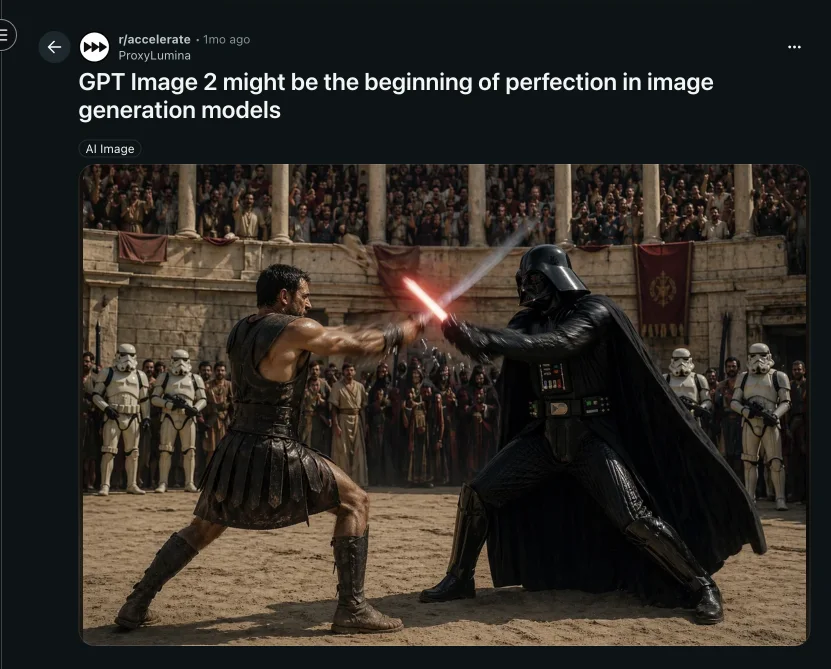
That makes it a strong choice for:
- title cards
- posters
- product-style shots
- social media graphics
- scene images with visible signs, labels, or typography
- cinematic story frames where detail really matters
For story videos, this matters more than it sounds. One weak scene can make the whole video feel cheaper. Being able to regenerate only that scene with a stronger image model gives you more control without rebuilding the entire project.
How to use it in the editor
The workflow stays the same:
- Create a video from a prompt or script.
- Let aistory.video generate the scene list and first draft.
- Open the project in the editor.
- Pick the scene image you want to improve.
- Edit the image prompt.
- Choose the AI image model.
- Generate a new scene image.
This is useful when the script is already working, but the visuals need another pass. You can keep the pacing, voice, subtitles, and structure, then improve the specific frames that need more care.
When to switch models
Use the model selector when a scene has a clear visual job.
If a frame includes readable text, branding, a poster layout, or a social graphic, try GPT Image 2 first. Its text rendering and prompt control make it a good fit for images where details cannot be vague.
If you are still exploring a scene direction, another model may be enough for quick drafts. Once the story is close, switch to a stronger model for the shots that carry the video.
This gives you a more practical editing loop: draft fast, then spend the better model calls where they actually improve the final video.
Try GPT Image 2 by itself
We also added a standalone GPT Image 2 image generator page:
Try GPT Image 2 on aistory.video
You can use it without starting a full video project. Type a prompt, generate an image, and download the result. It is a good place to test poster ideas, scene concepts, thumbnail directions, or visual references before turning them into a video.
If you want to turn an idea or script into a video and keep control over the visuals after the first draft, start here: Create with aistory.video