 GPT Image 2 is now available — try the latest OpenAI image model in your video projects.✨
 AIStory.Video
New: Timeline View in the Video Editor

Editing a story video is easier when you can see the whole structure at once.
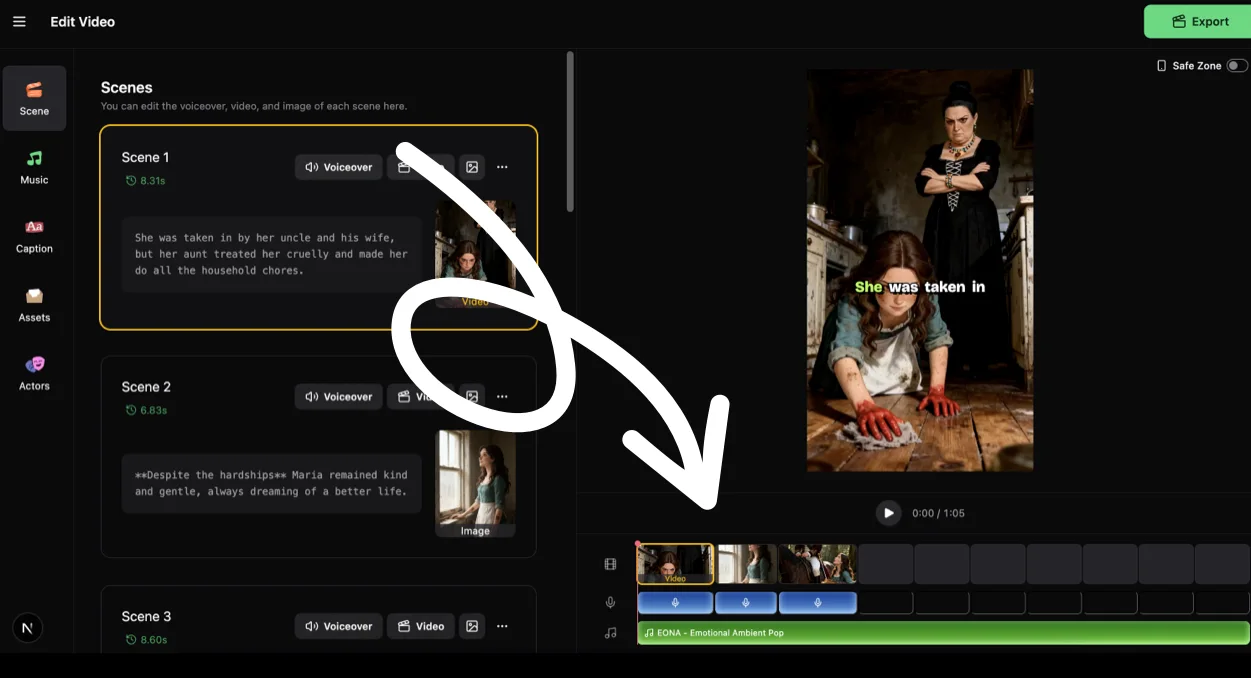
We added a timeline under the video preview in the aistory.video editor. It shows how your scenes, voiceover, and background music sit across the full video, so you are not only watching the preview frame by frame.
What changed
On desktop, the preview area now has a timeline panel below the video.
It includes three tracks:
- Video: each scene appears as a block, with thumbnails and duration.
- Voice: scenes with voiceover show a voice track block.
- BGM: if background music is enabled, it appears as one track across the video.
You can also play, pause, and check the current time from the same area.
Why this helps
Story videos are built from parts. Scenes, narration, music, subtitles, and pacing all need to work together.
Before this update, you could preview the final video, but it was harder to see the structure underneath it. Now the timeline gives you a quick map of the whole video.
That makes it easier to notice things like:
- whether one scene feels too long
- where the voiceover starts and ends
- whether the video has background music
- how the scene list flows from beginning to end
It is a small editor change, but it makes the video feel much easier to inspect.
Scene list and timeline now work together
The timeline is connected with the scene list.
When you click a scene on the left, the preview jumps to that scene. When you click a block on the timeline, the matching scene becomes active.
During playback, the active scene also updates as the video moves forward. This makes it easier to understand where you are in the story.
Better controls on mobile
Mobile now uses a simpler preview control below the video.
Instead of relying on the default video controls, you get:
- play and pause
- a draggable progress bar
- current time and total duration
If you want to create a story video and review the scenes, voiceover, and music in one place, start here: Create with aistory.video