 GPT Image 2.5 is now available — try the latest OpenAI image model in your video projects.✨
 AIStory.Video
New: Generate Videos with MiniMax H3 Max

MiniMax H3 Max is now available in aistory.video.

You can use it to animate any scene image in the editor. H3 Max takes the current image as the first frame, follows the scene's motion prompt, and turns it into a short video clip. It works inside the same image-to-video flow as our other models, so there is nothing new to set up.
What changed
Open a scene in the aistory.video editor and choose Generate Video. You will now see H3 Max alongside Story Flash, Seedance, Kling, and Wan in the model selector.

The current H3 Max settings are:
- 5 to 15 seconds per clip
- 5 credits per generation
Choose the model, check the motion prompt, and generate. The finished clip returns to the same scene and can be previewed in the editor as usual.
Why H3 Max is useful for story videos
An image-to-video model has one clear job in a story workflow: keep the scene you already like and add motion to it.
That makes H3 Max a good option when the composition, character, and visual style are already right. Instead of asking a video model to invent the whole shot, you give it a finished first frame and describe what should move.
For example:
The camera slowly pushes toward the hero as wind moves through the cape. Warm light flickers across the stone walls. Keep the character's face and outfit consistent.
Specific motion prompts usually work better than broad instructions such as "make it cinematic." Name the camera movement, the action, and the parts of the frame that should stay stable.
How to use H3 Max in aistory.video
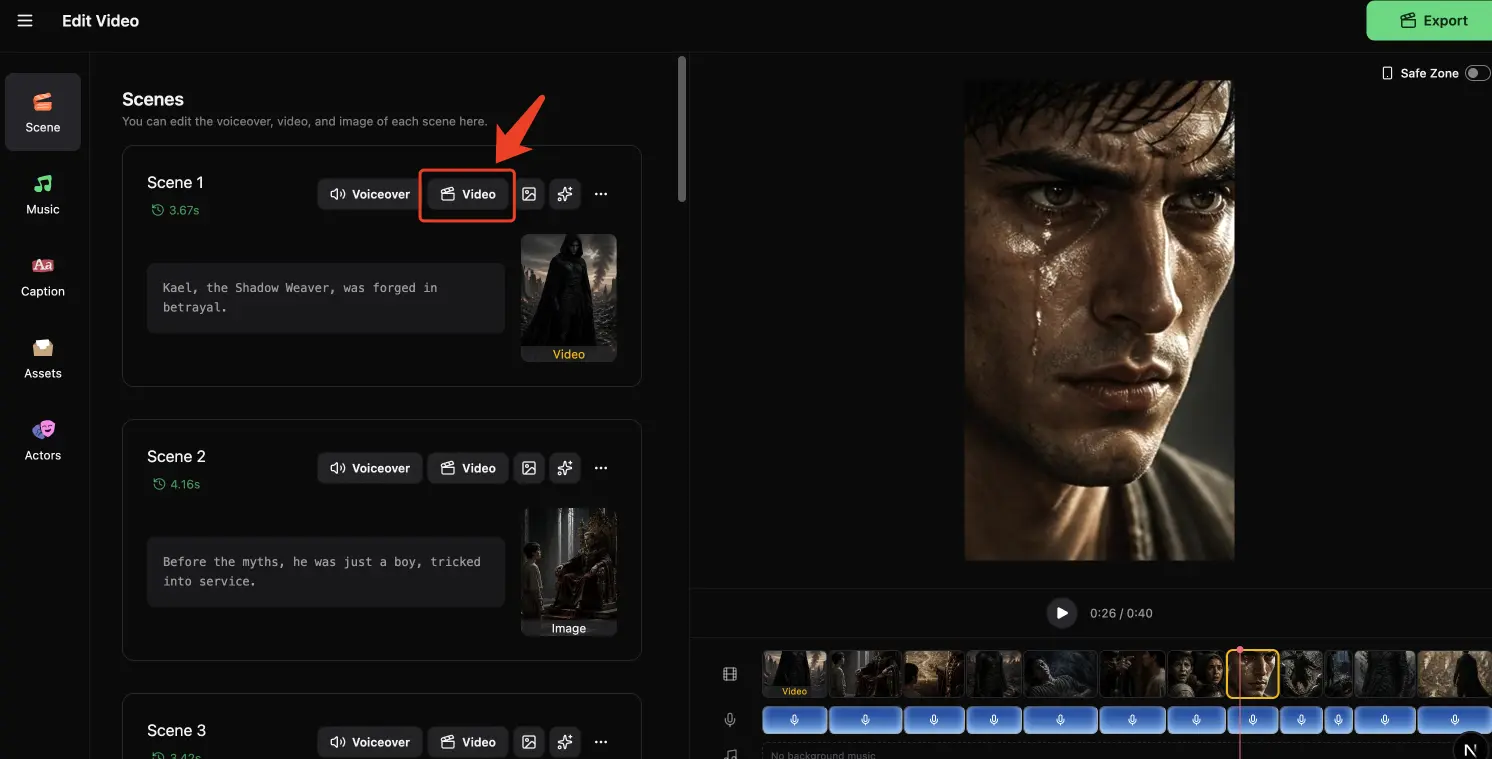
- Create a video from a prompt or script.
- Open the project in the editor.
- Select the scene you want to animate.
- Check or edit the scene's motion prompt.
- Open Generate Video and choose H3 Max.
- Set the clip duration, then generate.
You can try H3 Max on one important scene first, such as the opening hook, a reveal, or the final shot. If the result fits the story, use it on the other scenes that need stronger movement.
The rest of your workflow stays the same
H3 Max runs through a new video provider behind the scenes, but that change does not affect how you work.
Generated clips still move through the existing aistory.video pipeline. They are saved to the scene, added to your project assets, and shown in the editor like clips made with the other video models. Credit usage also stays consistent at 5 credits per clip.
This is our first video model served through fal.ai. Adding a second provider gives us more room to bring useful video models into the editor without rebuilding the creation flow each time.
Try MiniMax H3 Max
H3 Max is available now in the scene video model selector.
If you want to turn a script or idea into a vertical story video, then animate individual scenes with H3 Max, create a video with aistory.video.